> ## Documentation Index
> Fetch the complete documentation index at: https://docs.gbox.ai/llms.txt
> Use this file to discover all available pages before exploring further.
# OSWorld
> Learn how to use GBOX as a provider in OSWorld to build and run agents.
This tutorial teaches you how to use **GBOX as a provider** in OSWorld to build and run agents that can interact with operating systems.
## What is OSWorld?
[OSWorld](https://github.com/xlang-ai/OSWorld) is a benchmark framework for evaluating multimodal agents on open-ended tasks in real computer environments. It supports multiple providers for running virtual environments, including VMware, VirtualBox, Docker, and AWS. By using **GBOX as a provider**, you can leverage cloud-native infrastructure without managing local virtual machines, making it easier to scale your agent evaluations and reduce setup complexity.
## Architecture
The following diagram illustrates the architecture of OSWorld using GBOX as a provider:
```mermaid theme={null}
graph TB
A[OSWorld Agent] -->|Actions & Observations| B[OSWorld Framework]
B -->|Provider Interface| C[GBOX Provider]
C -->|API Calls| D[GBOX Cloud API]
D -->|Manage & Control| E[GBOX Box Environment]
E -->|Screenshots & UI State| D
D -->|Response| C
C -->|Environment State| B
B -->|Task Results| A
style A fill:#7139ee,color:#fff
style B fill:#7139ee,color:#fff
style C fill:#7139ee,color:#fff
style D fill:#7139ee,color:#fff
style E fill:#7139ee,color:#fff
```
## Benefits of Using GBOX Provider
Using GBOX as a provider in OSWorld offers several advantages:
### 🚀 **Cloud-Native Infrastructure**
* No need to set up and manage local virtual machines
* Works seamlessly across different development environments
* **Setup time reduced from \~2 hours to \~5 minutes**: Start evaluating agents immediately without downloading large VM images (often dozens of GB) or waiting for installations
### ⚡ **Easy Scaling & Parallelization**
* Run multiple environments in parallel without local resource constraints
* Significantly reduce evaluation time through parallel execution
### 🔧 **Simplified Setup**
* No need to check KVM support or install Docker Desktop
* Works on any platform without virtualization requirements
* No downloading VM images, installing virtualization software, or troubleshooting compatibility issues
### 🌐 **Accessibility**
* Access your environments from anywhere
* Consistent performance regardless of your local hardware
## Prerequisites
Before getting started, make sure you have:
* A GBOX account with an API key ([Get your API key](/api-key))
* An OpenAI API key (or another compatible LLM provider)
* Python 3.10 or higher installed
* Git installed
## Getting Started
### Step 1: Clone the Repository
Clone the OSWorld provider repository:
```bash theme={null}
# Clone the OSWorld provider repository
git clone https://github.com/babelcloud/OSWorld-provider
# Change directory into the cloned repository
cd OSWorld-provider
# Optional: Create a Conda environment for OSWorld
# conda create -n osworld python=3.10
# conda activate osworld
# Install required dependencies
pip install -r requirements.txt
```
### Step 2: Configure API Keys
Create a `.env` file in the repository root and add your GBOX API Key and OpenAI API Key:
```bash .env theme={null}
GBOX_API_KEY=your_gbox_api_key
OPENAI_API_KEY=your_openai_api_key
```
> **Note:** You can obtain your GBOX API key from the [API Key page](/api-key). Make sure to keep your API keys secure and never commit them to version control.
### Step 3: Run the Provider
Execute the following command to start the provider with GBOX:
```bash theme={null}
python run_multienv.py \
--provider_name gbox \
--model gpt-4o \
--region us-east-1 \
--max_steps 15 \
--observation_type screenshot \
--action_space pyautogui \
--result_dir ./results_gbox \
--num_envs 1 \
--test_all_meta_path evaluation_examples/test_small.json
```
**Command Parameters Explained:**
* `--provider_name gbox`: Use GBOX as the provider
* `--model gpt-4o`: Specify the LLM model for the agent
* `--region us-east-1`: GBOX region (adjust based on your preference)
* `--max_steps 15`: Maximum number of steps the agent can take
* `--observation_type screenshot`: Use screenshots for environment observation
* `--action_space pyautogui`: Use PyAutoGUI for action execution
* `--result_dir ./results_gbox`: Directory to save evaluation results
* `--num_envs 1`: Number of parallel environments to run. **Increasing this value can significantly improve evaluation efficiency** by running multiple tasks concurrently
* `--test_all_meta_path`: Path to the test configuration file
### Step 4: Monitor Agent Execution
Once the agent starts running, you can monitor its progress in real-time through the VNC viewer. The agent will interact with the OS environment, performing tasks based on the evaluation configuration.
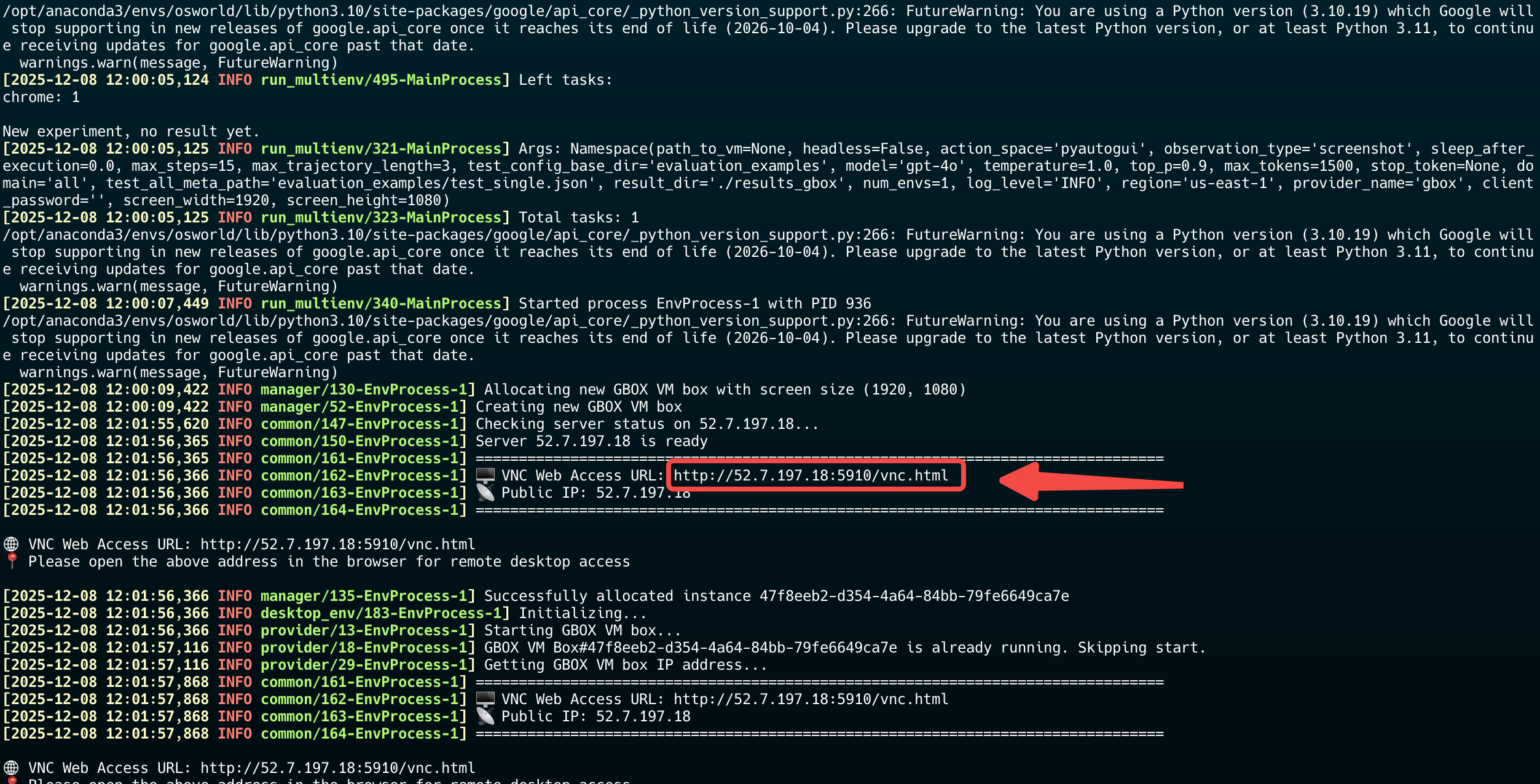 > **Tip:** The default VNC password is `osworld-public-evaluation`. You can access the VNC viewer URL from the GBOX dashboard or API response.
### Step 5: View Results
After the evaluation completes, you can find the results in the `results_gbox` directory. The results include:
* Task execution logs
* Screenshots of key actions
* Performance metrics
* Success/failure status for each task
You can now start building your own agents by modifying the test configuration files or creating custom evaluation scenarios.
## Next Steps
* Explore the [OSWorld documentation](https://github.com/xlang-ai/OSWorld) to learn more about creating custom evaluation tasks
* Check out the [GBOX API reference](/api-reference) for advanced configuration options
* Experiment with different models and parameters to optimize agent performance
* Scale up your evaluations by increasing the `--num_envs` parameter to run multiple environments in parallel
> **Tip:** The default VNC password is `osworld-public-evaluation`. You can access the VNC viewer URL from the GBOX dashboard or API response.
### Step 5: View Results
After the evaluation completes, you can find the results in the `results_gbox` directory. The results include:
* Task execution logs
* Screenshots of key actions
* Performance metrics
* Success/failure status for each task
You can now start building your own agents by modifying the test configuration files or creating custom evaluation scenarios.
## Next Steps
* Explore the [OSWorld documentation](https://github.com/xlang-ai/OSWorld) to learn more about creating custom evaluation tasks
* Check out the [GBOX API reference](/api-reference) for advanced configuration options
* Experiment with different models and parameters to optimize agent performance
* Scale up your evaluations by increasing the `--num_envs` parameter to run multiple environments in parallel