

What is OSWorld?
OSWorld is a benchmark framework for evaluating multimodal agents on open-ended tasks in real computer environments. It supports multiple providers for running virtual environments, including VMware, VirtualBox, Docker, and AWS. By using GBOX as a provider, you can leverage cloud-native infrastructure without managing local virtual machines, making it easier to scale your agent evaluations and reduce setup complexity.Architecture
The following diagram illustrates the architecture of OSWorld using GBOX as a provider:Benefits of Using GBOX Provider
Using GBOX as a provider in OSWorld offers several advantages:🚀 Cloud-Native Infrastructure
- No need to set up and manage local virtual machines
- Works seamlessly across different development environments
- Setup time reduced from ~2 hours to ~5 minutes: Start evaluating agents immediately without downloading large VM images (often dozens of GB) or waiting for installations
⚡ Easy Scaling & Parallelization
- Run multiple environments in parallel without local resource constraints
- Significantly reduce evaluation time through parallel execution
🔧 Simplified Setup
- No need to check KVM support or install Docker Desktop
- Works on any platform without virtualization requirements
- No downloading VM images, installing virtualization software, or troubleshooting compatibility issues
🌐 Accessibility
- Access your environments from anywhere
- Consistent performance regardless of your local hardware
Prerequisites
Before getting started, make sure you have:- A GBOX account with an API key (Get your API key)
- An OpenAI API key (or another compatible LLM provider)
- Python 3.10 or higher installed
- Git installed
Getting Started
Step 1: Clone the Repository
Clone the OSWorld provider repository:Step 2: Configure API Keys
Create a.env file in the repository root and add your GBOX API Key and OpenAI API Key:
.env
Note: You can obtain your GBOX API key from the API Key page. Make sure to keep your API keys secure and never commit them to version control.
Step 3: Run the Provider
Execute the following command to start the provider with GBOX:--provider_name gbox: Use GBOX as the provider--model gpt-4o: Specify the LLM model for the agent--region us-east-1: GBOX region (adjust based on your preference)--max_steps 15: Maximum number of steps the agent can take--observation_type screenshot: Use screenshots for environment observation--action_space pyautogui: Use PyAutoGUI for action execution--result_dir ./results_gbox: Directory to save evaluation results--num_envs 1: Number of parallel environments to run. Increasing this value can significantly improve evaluation efficiency by running multiple tasks concurrently--test_all_meta_path: Path to the test configuration file
Step 4: Monitor Agent Execution
Once the agent starts running, you can monitor its progress in real-time through the VNC viewer. The agent will interact with the OS environment, performing tasks based on the evaluation configuration.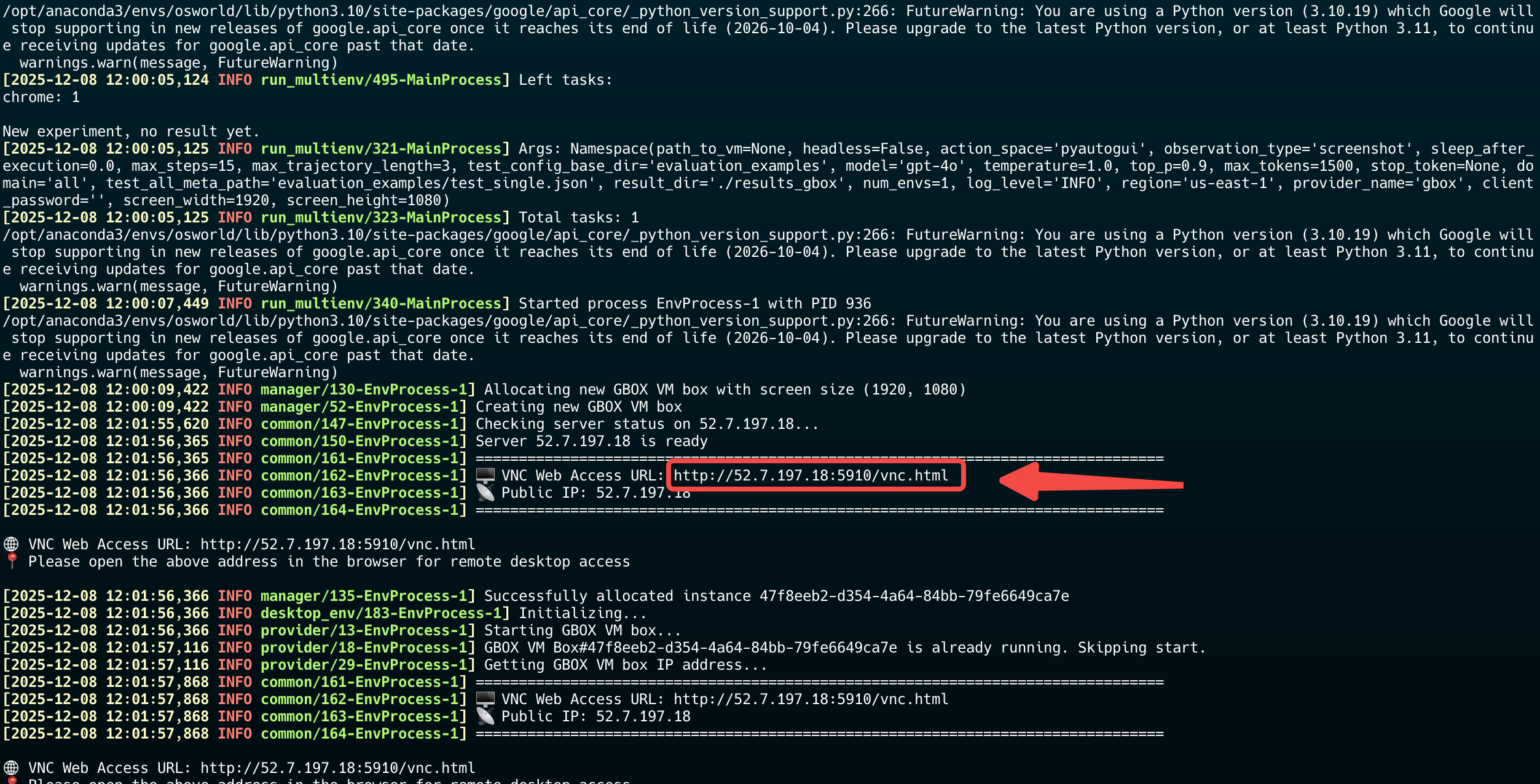
Tip: The default VNC password is osworld-public-evaluation. You can access the VNC viewer URL from the GBOX dashboard or API response.
Step 5: View Results
After the evaluation completes, you can find the results in theresults_gbox directory. The results include:
- Task execution logs
- Screenshots of key actions
- Performance metrics
- Success/failure status for each task
Next Steps
- Explore the OSWorld documentation to learn more about creating custom evaluation tasks
- Check out the GBOX API reference for advanced configuration options
- Experiment with different models and parameters to optimize agent performance
- Scale up your evaluations by increasing the
--num_envsparameter to run multiple environments in parallel